> ## Documentation Index
> Fetch the complete documentation index at: https://docs.nuon.co/llms.txt
> Use this file to discover all available pages before exploring further.
# Create An AWS Lambda App
> Learn how to package and install an AWS Lambda app.
This [app](/concepts/apps) can be found in the [aws-lambda directory](https://github.com/nuonco/example-app-configs/tree/main/aws-lambda) of the example-app-configs repository.
## Prerequisites
* [Signup for the self-service free trial](https://app.nuon.co). You will need a login and an org in Nuon's cloud.
* [Set up an AWS account](https://docs.aws.amazon.com/SetUp/latest/UserGuide/setup-overview.html).
This is the account you will install the app in.
## What You Will Create
This tutorial will walk you through creating the following:
* An [app](/concepts/apps)
* Several [components](/concepts/components) including a Lambda function, Docker
image, DynamoDB table, Certificate and API Gateway
* An [install](/concepts/installs), using our
[AWS minimal sandbox](/concepts/sandboxes#nuon-managed-sandboxes)
We recommend you clone the [`example-app-configs`
repository](https://github.com/nuonco/example-app-configs) which includes the
`aws-lambda` app versus creating each config file manually. This guide is
meant to explain the concepts behind some of the config files, so you can
create your own apps in the future.
## Configure App
To configure the app, you will create several TOML config files. In each section
below we will provide you with configuration snippets for the app itself as well
as it's components.
### Create App
Clone the `example-app-configs` repository, cd into the `aws-lambda` directory,
and create the app in Nuon. This will create the app in `app.nuon.co`
```sh theme={null}
git clone https://github.com/nuonco/example-app-configs
cd example-app-configs/aws-lambda
nuon auth login
nuon orgs select
nuon apps create -n aws-lambda
```
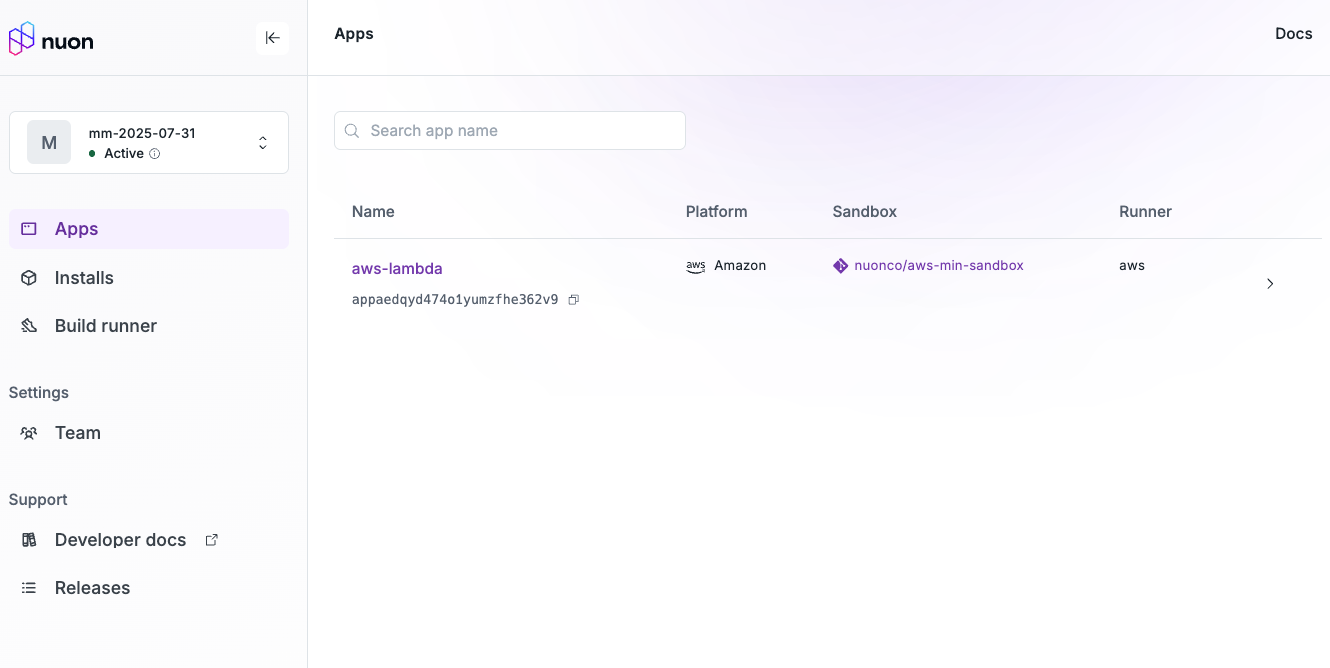
You should see the new app in the dashboard.
 ### Inputs
Inputs are customer-specific configs that are entered when you install the App
in the customer's cloud account. They will be displayed in the dashboard.
Inputs are optional.
In the app root directory, notice the file named `inputs.toml`:
```toml inputs.toml theme={null}
# inputs
[[group]]
name = "dns"
description = "DNS Configrations"
display_name = "Configurations for the root domain for Route53"
[[input]]
name = "domain"
description = "domain for the AWS API Gateway e.g., nuon.run or stage.nuon.run"
default = "nuon.run"
display_name = "Domain"
group = "dns"
[[input]]
name = "sub_domain"
description = "The sub domain for the AWS API Gateway"
default = "api"
display_name = "Sub Domain"
group = "dns"
```
This input defines a domain, which will default to the install id as subdomain
prepended to `nuon.run` and a second-level subdomain for the API Gateway service
that will be deployed in the customer's AWS account. The customer will be
prompted to enter these values when they create an install of the app. For this
tutorial, you can accept the defaults.
### Sandbox
Nuon provides a set of
[Nuon Managed Sandboxes](/concepts/sandboxes#nuon-managed-sandboxes) that can be
used to provision the infrastructure needed for your app. The `aws-min-sandbox`
is very streamlined compared to the Kubernetes sandboxes so will provide DNS
delegation needed for nuon.run.
Your app references these Sandboxes in the `sandbox.toml` file.
In the app root directory, notice the file named `sandbox.toml`:
```toml sandbox.toml theme={null}
# sandbox
terraform_version = "1.11.4"
[public_repo]
directory = "."
repo = "nuonco/aws-min-sandbox"
branch = "main"
[vars]
enable_nuon_dns = "true"
public_root_domain = "{{ .nuon.install.id }}.{{.nuon.inputs.inputs.domain}}"
internal_root_domain = "internal.{{ .nuon.install.id }}.{{.nuon.inputs.inputs.domain}}"
[[var_file]]
contents = "./sandbox.tfvars"
```
With `enable_nuon_dns` set to `true`, the sandbox will create a Route53 DNS zone
for the install, allowing you to access the services deployed in the customer's
AWS account using a Nuon-managed `nuon.run` domain. The config uses the install
id as the subdomain, which will be unique for each install.
### Components
Components are the building blocks of your app and where a software vendor's
application is installed on top of the sandbox infrastructure.
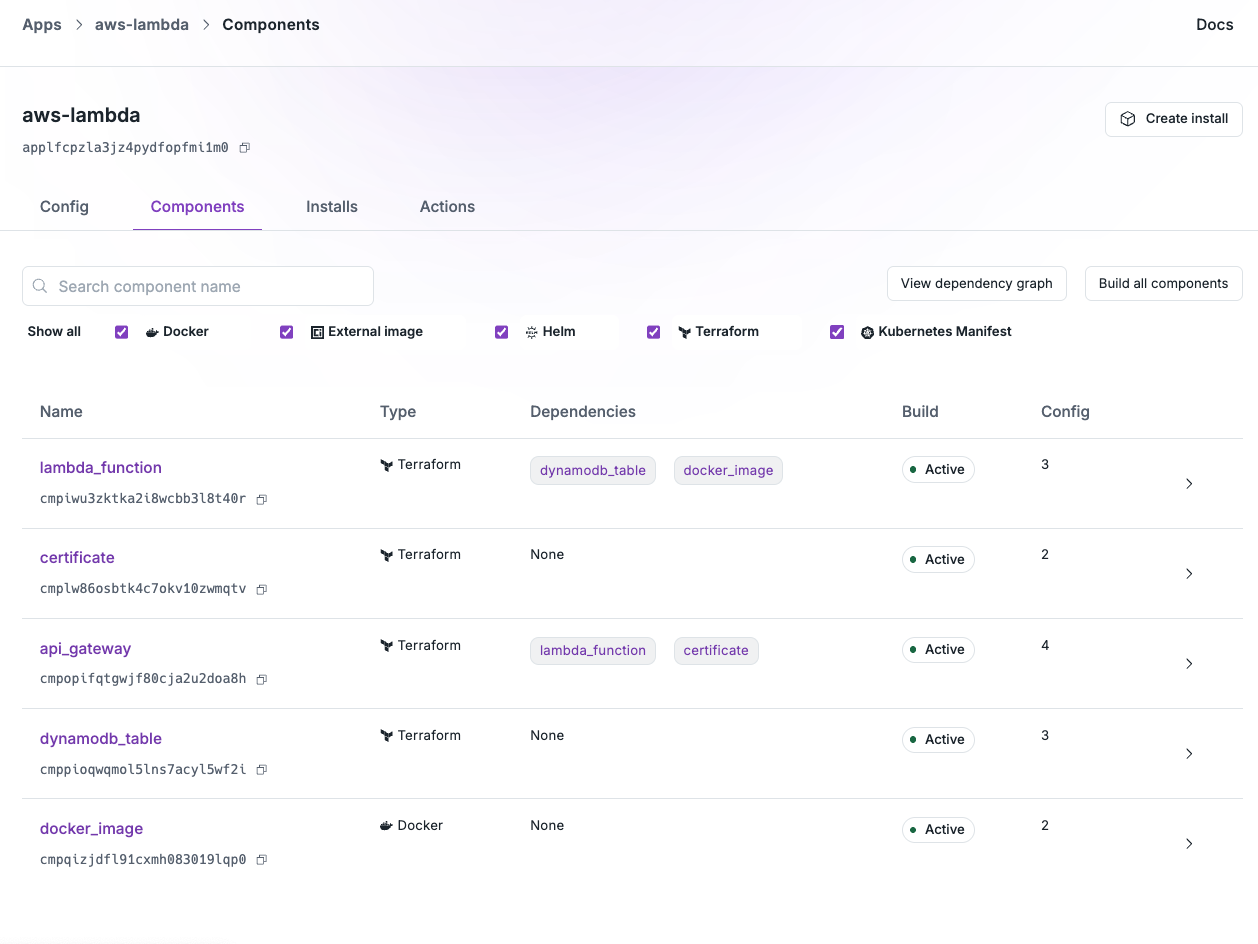
In this example, there are several components that make up the AWS Lambda app,
including:
* A Docker image with a Dockerfile and Go app stored in ECR
* A DynamoDB table to store data
* A Lambda function to process requests
* An API Gateway to expose the Lambda function to the internet
* A Certificate to secure the API Gateway
In the app root directory, navigate to the `components` directory. Notice there
are several files here, one for each component. Numbers are prefixed to the file
names to easily show the dependency order.
The Docker build component creates a container image including the Go
application code and pushes it to ECR.
```toml 0-docker-image.toml theme={null}
# docker-build
name = "docker_image"
type = "docker_build"
dockerfile = "Dockerfile"
[public_repo]
repo = "nuonco/example-app-configs"
directory = "aws-lambda/src/components/api"
branch = "main"
```
The DynamoDB component creates a DynamoDB table using Terraform to store data
from the Lambda function POST route.
```toml 1-dynamodb-table.toml theme={null}
# terraform
name = "dynamodb_table"
type = "terraform_module"
terraform_version = "1.11.4"
[public_repo]
repo = "nuonco/example-app-configs"
directory = "aws-lambda/src/components/dynamodb-table"
branch = "main"
[vars]
name = "widgets-{{.nuon.install.id}}"
hash_key = "ID"
install_id = "{{.nuon.install.id}}"
region = "{{.nuon.install_stack.outputs.region}}"
```
The Lambda component creates a Lambda function using Terraform that references
the Docker image in ECR.
```toml 2-lambda-function.toml theme={null}
# terraform
name = "lambda_function"
type = "terraform_module"
terraform_version = "1.11.4"
dependencies = ["dynamodb_table"]
[public_repo]
repo = "nuonco/example-app-configs"
directory = "aws-lambda/src/components/lambda-function"
branch = "main"
[vars]
install_id = "{{.nuon.install.id}}"
region = "{{.nuon.sandbox.outputs.account.region}}"
function_name = "widgets-{{.nuon.install.id}}"
image_uri = "{{.nuon.components.docker_image.outputs.image.repository}}:{{.nuon.components.docker_image.outputs.image.tag}}"
dynamodb_table_arn = "{{.nuon.components.dynamodb_table.outputs.dynamodb_table_arn}}"
```
The certificate component creates a Certificate using Terraform for the API
Gateway to use.
```toml 3-certificate.toml theme={null}
# terraform
name = "certificate"
type = "terraform_module"
terraform_version = "1.11.4"
[public_repo]
repo = "nuonco/example-app-configs"
directory = "aws-lambda/src/components/certificate"
branch = "main"
[vars]
zone_id = "{{.nuon.install.sandbox.outputs.nuon_dns.public_domain.zone_id}}"
domain_name = "*.{{.nuon.install.sandbox.outputs.nuon_dns.public_domain.name}}"
install_id = "{{.nuon.install.id}}"
region = "{{.nuon.install_stack.outputs.region}}"
# https://registry.terraform.io/modules/terraform-aws-modules/acm/aws/latest
```
The API Gateway component creates an API Gateway using Terraform that exposes
the Lambda function to the internet. Notice how the certificate, Route53 zone,
and Lambda function are all referenced in this component through interpolations.
```toml 4-api-gateway.toml theme={null}
# terraform
name = "api_gateway"
type = "terraform_module"
terraform_version = "1.11.4"
[public_repo]
repo = "nuonco/example-app-configs"
directory = "aws-lambda/src/components/api-gateway"
branch = "main"
[vars]
install_id = "{{.nuon.install.id}}"
region = "{{.nuon.install_stack.outputs.region}}"
name = "{{.nuon.inputs.inputs.sub_domain}}"
domain_name = "{{.nuon.install.sandbox.outputs.nuon_dns.public_domain.name }}"
domain_name_certificate_arn = "{{.nuon.components.certificate.outputs.public_domain_certificate_arn}} "
lambda_function_arn = "{{.nuon.components.lambda_function.outputs.lambda_function.lambda_function_arn}}"
zone_id = "{{.nuon.install.sandbox.outputs.nuon_dns.public_domain.zone_id}}"
```
### Sync App to Nuon
You now have a complete Nuon app.
This is a good place to stop and sync it to Nuon.
Make sure you are in the root directory of your app, then run:
```sh theme={null}
nuon apps sync
```
Select the app in the dashboard, and you should now see the updated inputs,
sandbox, components, and runner configuration.
### Inputs
Inputs are customer-specific configs that are entered when you install the App
in the customer's cloud account. They will be displayed in the dashboard.
Inputs are optional.
In the app root directory, notice the file named `inputs.toml`:
```toml inputs.toml theme={null}
# inputs
[[group]]
name = "dns"
description = "DNS Configrations"
display_name = "Configurations for the root domain for Route53"
[[input]]
name = "domain"
description = "domain for the AWS API Gateway e.g., nuon.run or stage.nuon.run"
default = "nuon.run"
display_name = "Domain"
group = "dns"
[[input]]
name = "sub_domain"
description = "The sub domain for the AWS API Gateway"
default = "api"
display_name = "Sub Domain"
group = "dns"
```
This input defines a domain, which will default to the install id as subdomain
prepended to `nuon.run` and a second-level subdomain for the API Gateway service
that will be deployed in the customer's AWS account. The customer will be
prompted to enter these values when they create an install of the app. For this
tutorial, you can accept the defaults.
### Sandbox
Nuon provides a set of
[Nuon Managed Sandboxes](/concepts/sandboxes#nuon-managed-sandboxes) that can be
used to provision the infrastructure needed for your app. The `aws-min-sandbox`
is very streamlined compared to the Kubernetes sandboxes so will provide DNS
delegation needed for nuon.run.
Your app references these Sandboxes in the `sandbox.toml` file.
In the app root directory, notice the file named `sandbox.toml`:
```toml sandbox.toml theme={null}
# sandbox
terraform_version = "1.11.4"
[public_repo]
directory = "."
repo = "nuonco/aws-min-sandbox"
branch = "main"
[vars]
enable_nuon_dns = "true"
public_root_domain = "{{ .nuon.install.id }}.{{.nuon.inputs.inputs.domain}}"
internal_root_domain = "internal.{{ .nuon.install.id }}.{{.nuon.inputs.inputs.domain}}"
[[var_file]]
contents = "./sandbox.tfvars"
```
With `enable_nuon_dns` set to `true`, the sandbox will create a Route53 DNS zone
for the install, allowing you to access the services deployed in the customer's
AWS account using a Nuon-managed `nuon.run` domain. The config uses the install
id as the subdomain, which will be unique for each install.
### Components
Components are the building blocks of your app and where a software vendor's
application is installed on top of the sandbox infrastructure.
In this example, there are several components that make up the AWS Lambda app,
including:
* A Docker image with a Dockerfile and Go app stored in ECR
* A DynamoDB table to store data
* A Lambda function to process requests
* An API Gateway to expose the Lambda function to the internet
* A Certificate to secure the API Gateway
In the app root directory, navigate to the `components` directory. Notice there
are several files here, one for each component. Numbers are prefixed to the file
names to easily show the dependency order.
The Docker build component creates a container image including the Go
application code and pushes it to ECR.
```toml 0-docker-image.toml theme={null}
# docker-build
name = "docker_image"
type = "docker_build"
dockerfile = "Dockerfile"
[public_repo]
repo = "nuonco/example-app-configs"
directory = "aws-lambda/src/components/api"
branch = "main"
```
The DynamoDB component creates a DynamoDB table using Terraform to store data
from the Lambda function POST route.
```toml 1-dynamodb-table.toml theme={null}
# terraform
name = "dynamodb_table"
type = "terraform_module"
terraform_version = "1.11.4"
[public_repo]
repo = "nuonco/example-app-configs"
directory = "aws-lambda/src/components/dynamodb-table"
branch = "main"
[vars]
name = "widgets-{{.nuon.install.id}}"
hash_key = "ID"
install_id = "{{.nuon.install.id}}"
region = "{{.nuon.install_stack.outputs.region}}"
```
The Lambda component creates a Lambda function using Terraform that references
the Docker image in ECR.
```toml 2-lambda-function.toml theme={null}
# terraform
name = "lambda_function"
type = "terraform_module"
terraform_version = "1.11.4"
dependencies = ["dynamodb_table"]
[public_repo]
repo = "nuonco/example-app-configs"
directory = "aws-lambda/src/components/lambda-function"
branch = "main"
[vars]
install_id = "{{.nuon.install.id}}"
region = "{{.nuon.sandbox.outputs.account.region}}"
function_name = "widgets-{{.nuon.install.id}}"
image_uri = "{{.nuon.components.docker_image.outputs.image.repository}}:{{.nuon.components.docker_image.outputs.image.tag}}"
dynamodb_table_arn = "{{.nuon.components.dynamodb_table.outputs.dynamodb_table_arn}}"
```
The certificate component creates a Certificate using Terraform for the API
Gateway to use.
```toml 3-certificate.toml theme={null}
# terraform
name = "certificate"
type = "terraform_module"
terraform_version = "1.11.4"
[public_repo]
repo = "nuonco/example-app-configs"
directory = "aws-lambda/src/components/certificate"
branch = "main"
[vars]
zone_id = "{{.nuon.install.sandbox.outputs.nuon_dns.public_domain.zone_id}}"
domain_name = "*.{{.nuon.install.sandbox.outputs.nuon_dns.public_domain.name}}"
install_id = "{{.nuon.install.id}}"
region = "{{.nuon.install_stack.outputs.region}}"
# https://registry.terraform.io/modules/terraform-aws-modules/acm/aws/latest
```
The API Gateway component creates an API Gateway using Terraform that exposes
the Lambda function to the internet. Notice how the certificate, Route53 zone,
and Lambda function are all referenced in this component through interpolations.
```toml 4-api-gateway.toml theme={null}
# terraform
name = "api_gateway"
type = "terraform_module"
terraform_version = "1.11.4"
[public_repo]
repo = "nuonco/example-app-configs"
directory = "aws-lambda/src/components/api-gateway"
branch = "main"
[vars]
install_id = "{{.nuon.install.id}}"
region = "{{.nuon.install_stack.outputs.region}}"
name = "{{.nuon.inputs.inputs.sub_domain}}"
domain_name = "{{.nuon.install.sandbox.outputs.nuon_dns.public_domain.name }}"
domain_name_certificate_arn = "{{.nuon.components.certificate.outputs.public_domain_certificate_arn}} "
lambda_function_arn = "{{.nuon.components.lambda_function.outputs.lambda_function.lambda_function_arn}}"
zone_id = "{{.nuon.install.sandbox.outputs.nuon_dns.public_domain.zone_id}}"
```
### Sync App to Nuon
You now have a complete Nuon app.
This is a good place to stop and sync it to Nuon.
Make sure you are in the root directory of your app, then run:
```sh theme={null}
nuon apps sync
```
Select the app in the dashboard, and you should now see the updated inputs,
sandbox, components, and runner configuration.
 ## Create an Install
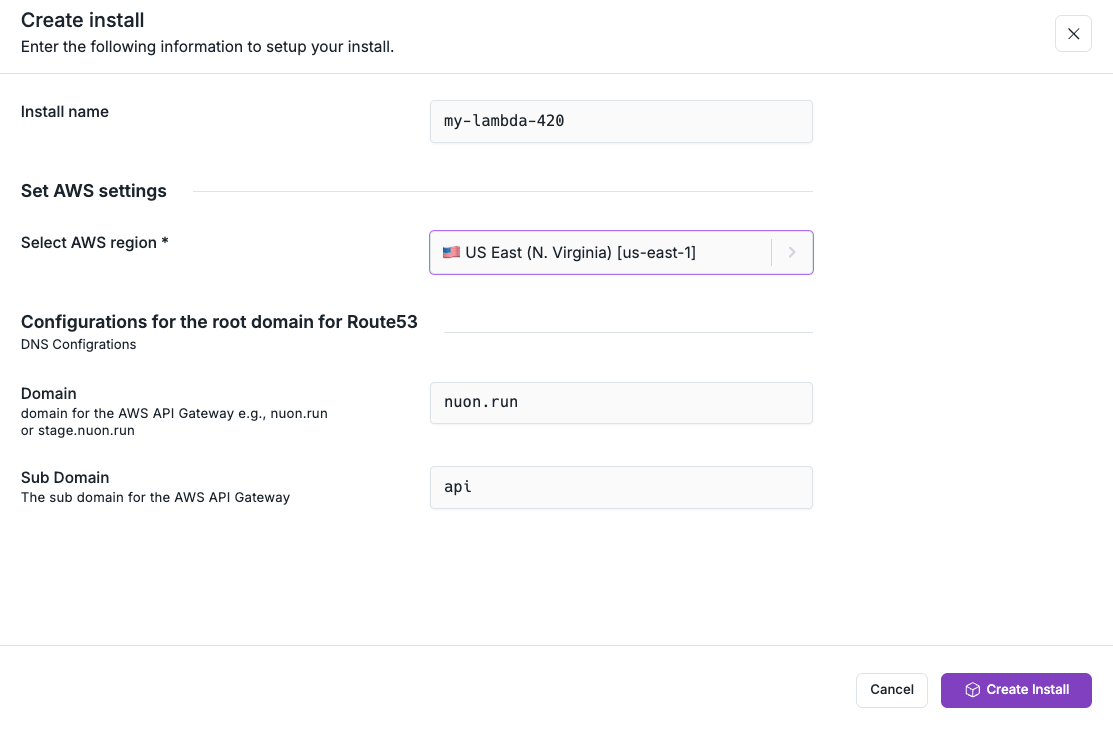
Click the Create Install button in the top right corner of the app page in the
Dashboard. Give your install a name choose the AWS Region.
Notice the inputs you defined in the `inputs.toml` file are displayed here,
allowing the customer to enter their own values. Just accept the defaults for
this tutorial.
Click the Create Install button at the bottom of the page to start the Workflow.
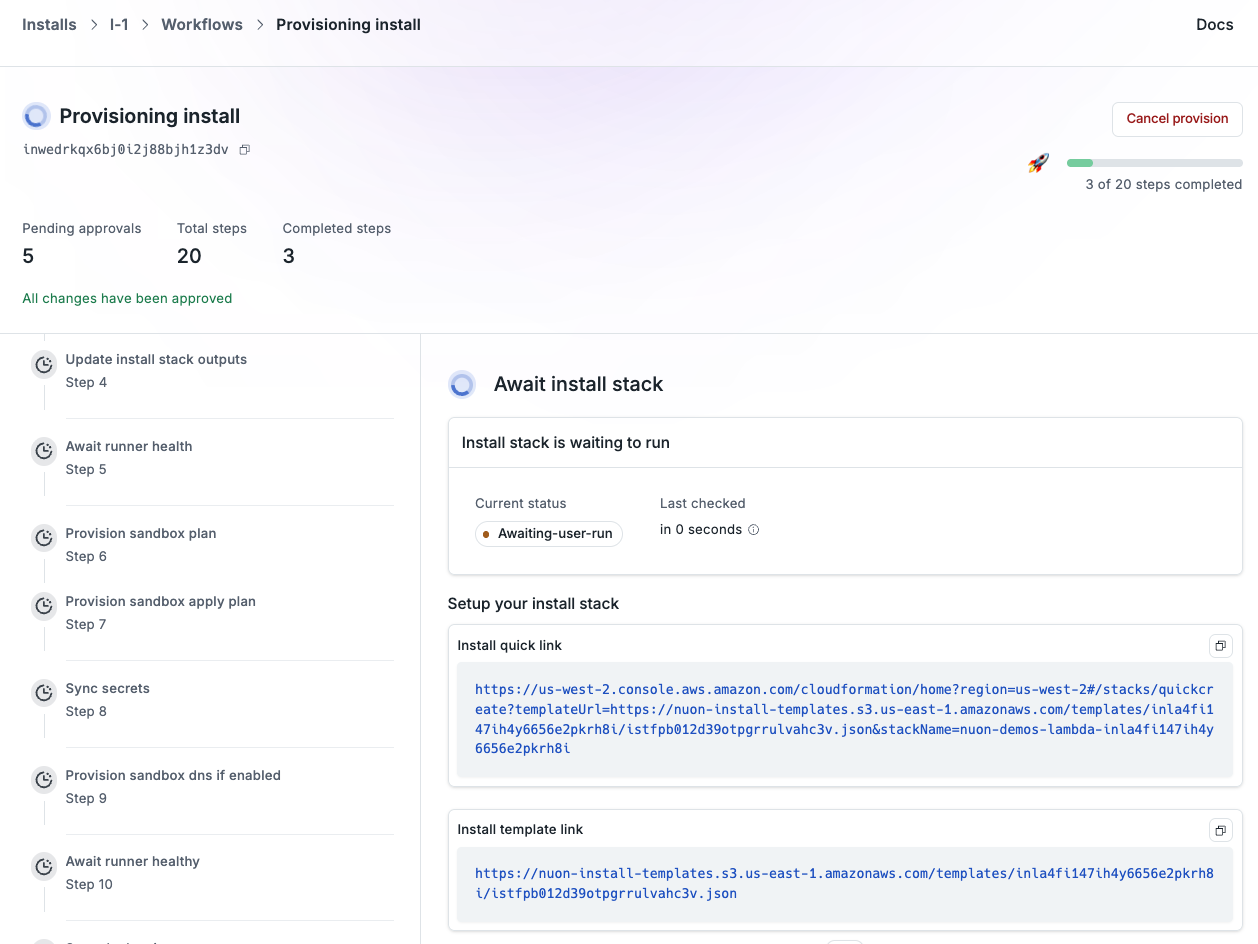
The provision workflow generates two install stack formats — a CloudFormation
Quick-Create / CLI snippet, and a Terraform `install.tfvars` for the
[`install-stacks/aws`](https://github.com/nuonco/install-stacks) module — so the
customer can apply whichever fits their tooling.
## Create an Install
Click the Create Install button in the top right corner of the app page in the
Dashboard. Give your install a name choose the AWS Region.
Notice the inputs you defined in the `inputs.toml` file are displayed here,
allowing the customer to enter their own values. Just accept the defaults for
this tutorial.
Click the Create Install button at the bottom of the page to start the Workflow.
The provision workflow generates two install stack formats — a CloudFormation
Quick-Create / CLI snippet, and a Terraform `install.tfvars` for the
[`install-stacks/aws`](https://github.com/nuonco/install-stacks) module — so the
customer can apply whichever fits their tooling.
 ### Monitoring Installs
As soon as you kick off the install provisioning, you should see the new
install's workflow in the dashboard.
### Monitoring Installs
As soon as you kick off the install provisioning, you should see the new
install's workflow in the dashboard.
 ### Apply the Install Stack in AWS
In this step, you are switching personas, from the software vendor, to the end
customer, authorizing the install of the app in your cloud account. Apply the
install stack using whichever format fits your workflow. Either way, the
resulting resources are the same: a VPC, the IAM policies Nuon expects, an
Autoscaling Group, and a VM running the Nuon Build Runner that will provision
the install of your app.
#### Option A: CloudFormation
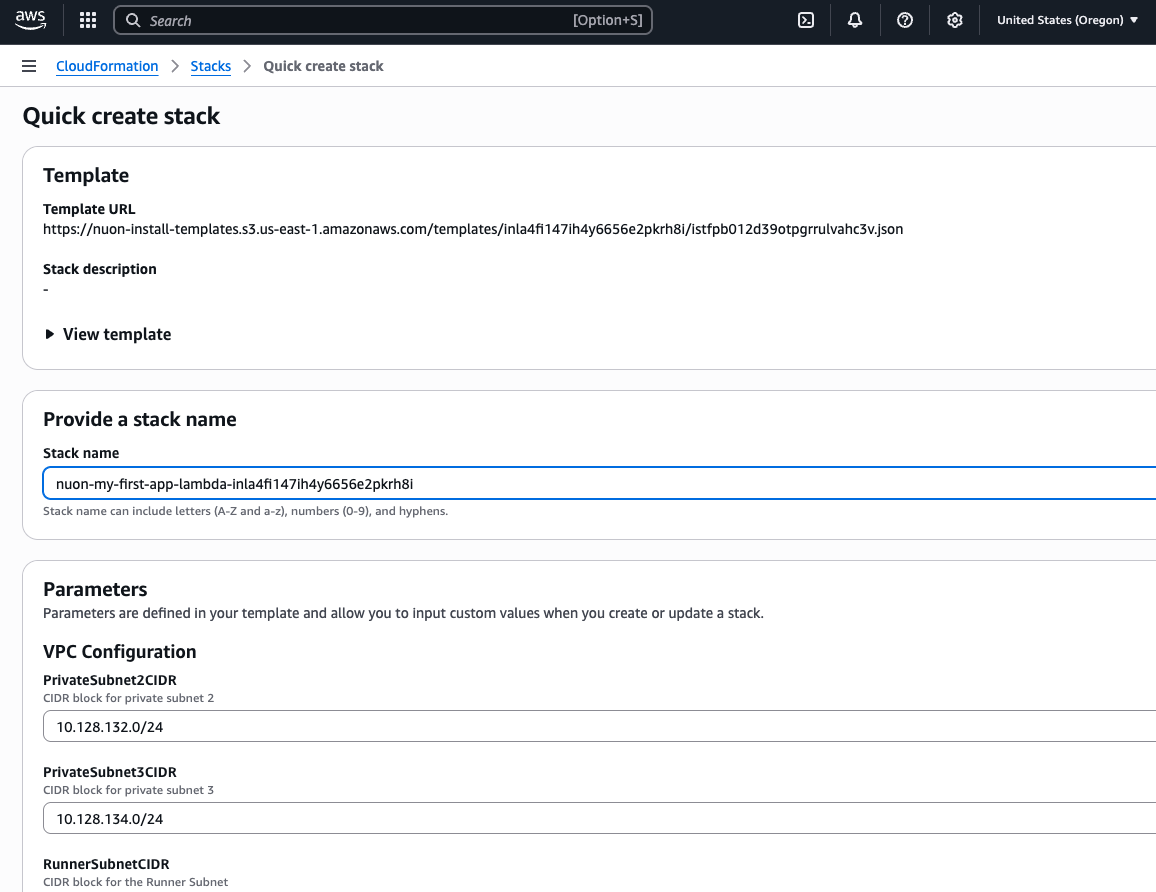
Click or copy the CloudFormation Quick-Create link to open it in your AWS
account, log in, scroll to the bottom, accept the defaults, and click **Create
Stack**.
### Apply the Install Stack in AWS
In this step, you are switching personas, from the software vendor, to the end
customer, authorizing the install of the app in your cloud account. Apply the
install stack using whichever format fits your workflow. Either way, the
resulting resources are the same: a VPC, the IAM policies Nuon expects, an
Autoscaling Group, and a VM running the Nuon Build Runner that will provision
the install of your app.
#### Option A: CloudFormation
Click or copy the CloudFormation Quick-Create link to open it in your AWS
account, log in, scroll to the bottom, accept the defaults, and click **Create
Stack**.
 #### Option B: Terraform
Download the generated `install.tfvars` from the dashboard, set up a `backend.tf`
(snippet provided in the dashboard), and run:
```sh theme={null}
terraform init
terraform apply -var-file=install.tfvars
```
against the [`install-stacks/aws`](https://github.com/nuonco/install-stacks) module.
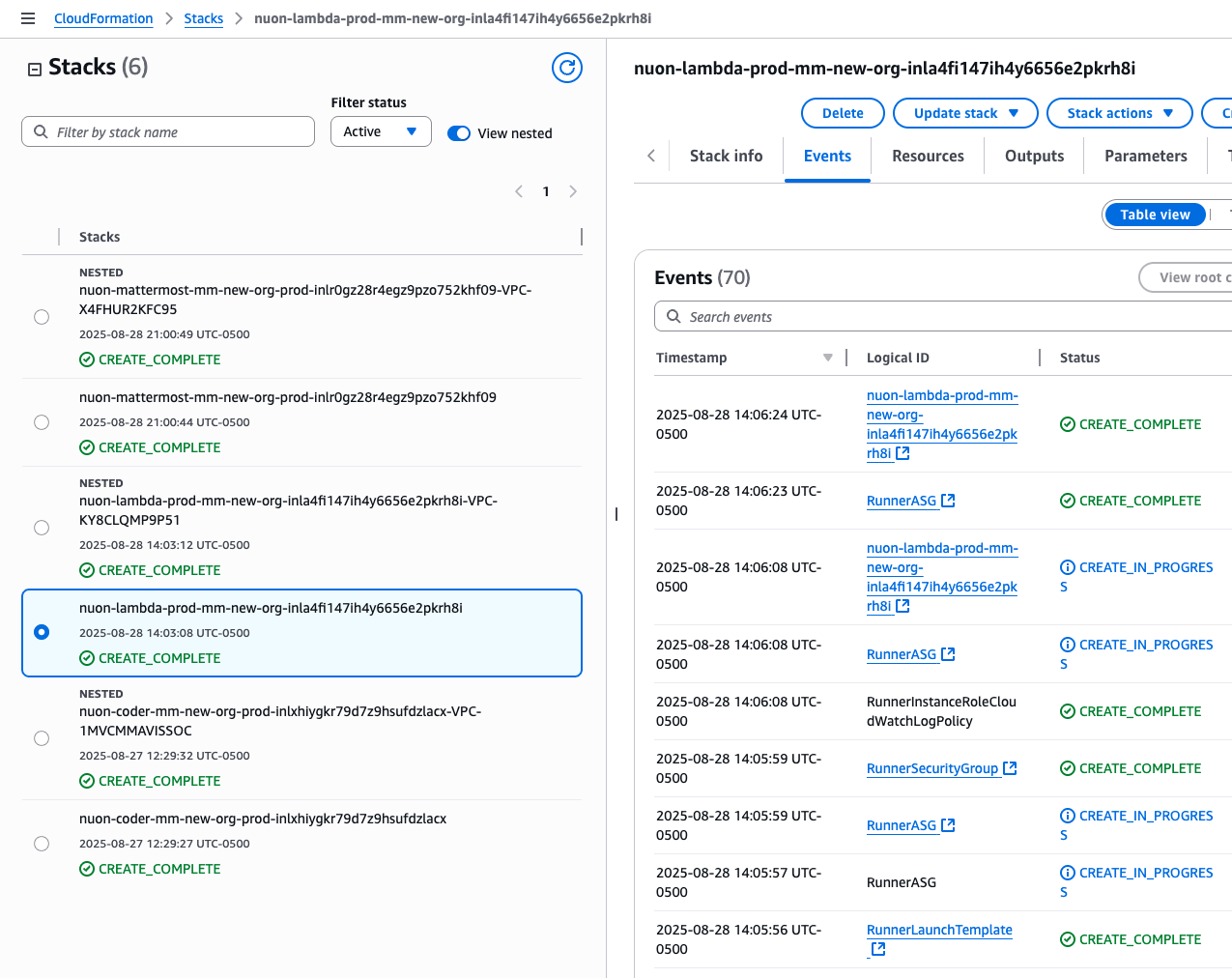
### Monitor the Install Stack creation in AWS
Monitor the stack creation in the AWS console (CloudFormation) or the Terraform
output. This will take a few minutes to complete. You can also pull up the AWS
EC2 console and see the EC2 VM appear at some point with the install id in its
name. The Nuon Dashboard will not provide feedback until the runner is up and
connected to Nuon.
#### Option B: Terraform
Download the generated `install.tfvars` from the dashboard, set up a `backend.tf`
(snippet provided in the dashboard), and run:
```sh theme={null}
terraform init
terraform apply -var-file=install.tfvars
```
against the [`install-stacks/aws`](https://github.com/nuonco/install-stacks) module.
### Monitor the Install Stack creation in AWS
Monitor the stack creation in the AWS console (CloudFormation) or the Terraform
output. This will take a few minutes to complete. You can also pull up the AWS
EC2 console and see the EC2 VM appear at some point with the install id in its
name. The Nuon Dashboard will not provide feedback until the runner is up and
connected to Nuon.
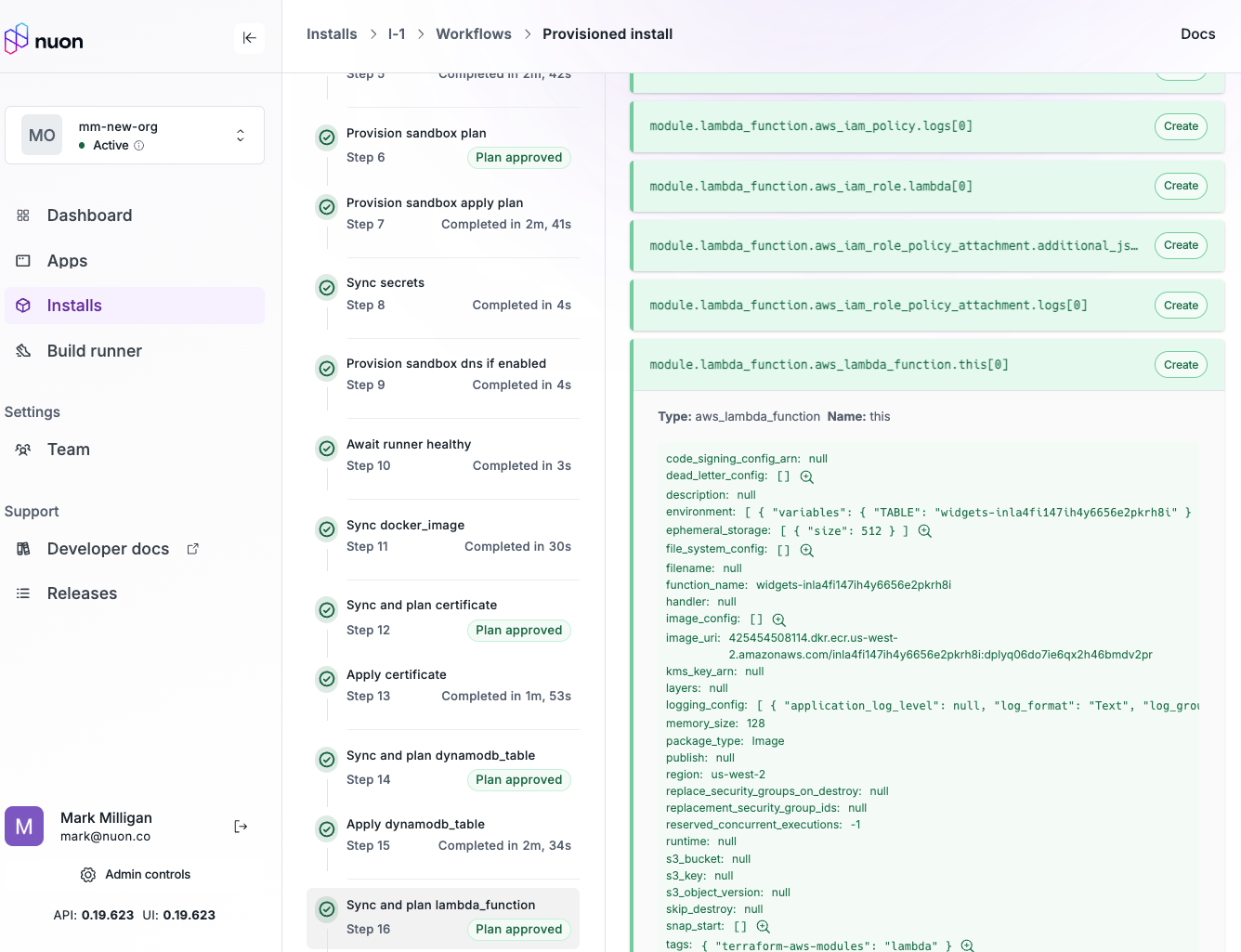
 ### Monitor the Remainder of the Install Workflow
If plan steps require approvals, you will need to approve them in the dashboard.
You can also monitor the progress of the install in the dashboard.
### Monitor the Remainder of the Install Workflow
If plan steps require approvals, you will need to approve them in the dashboard.
You can also monitor the progress of the install in the dashboard.
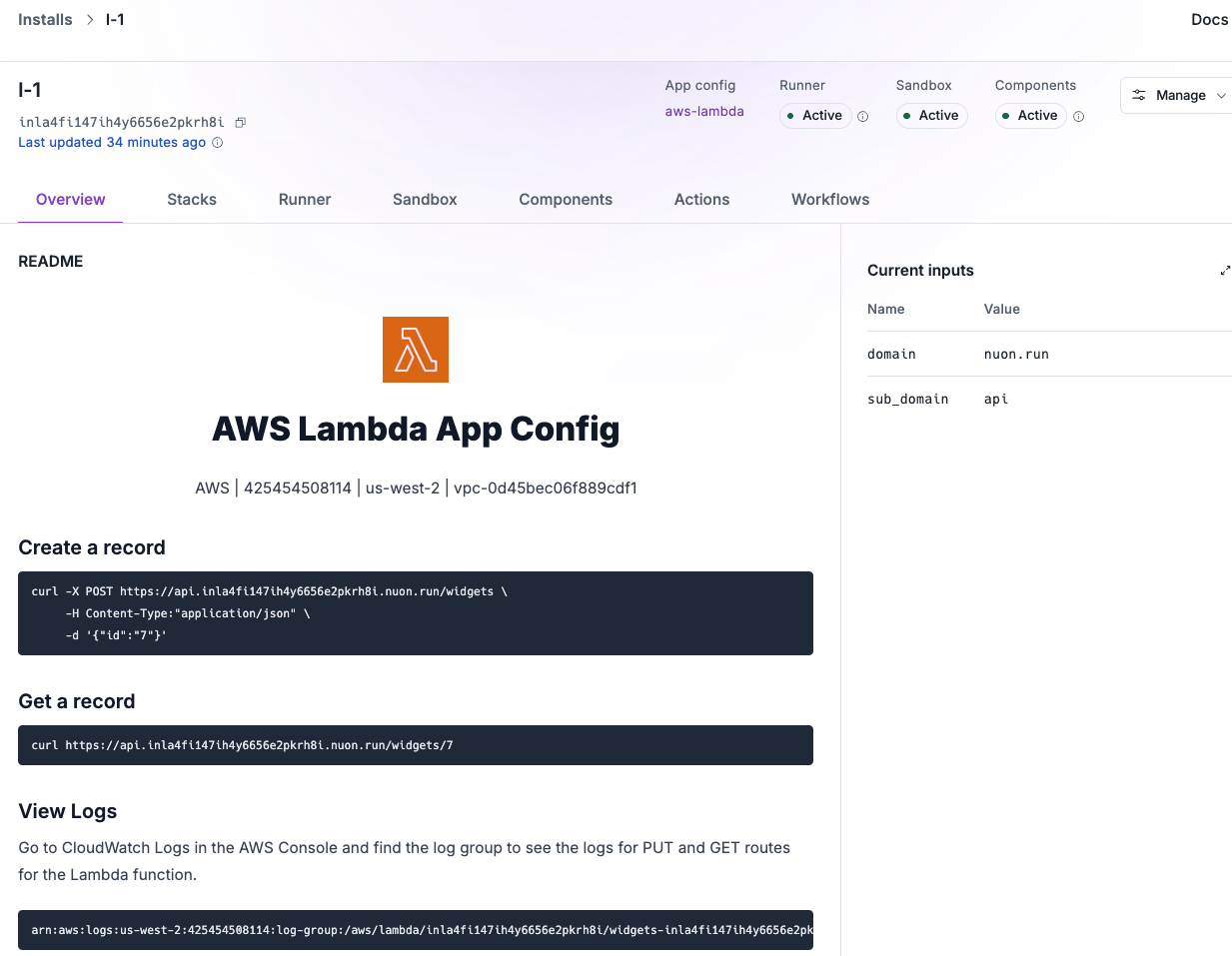
 ### Inspect the Install
When the install has provisioned, and the deploys have completed, click the URL
link in the Install's README.md visible on the install page in the dashboard.
Alternatively, copy the link and open a terminal and curl the API to verify it's
running.
### Inspect the Install
When the install has provisioned, and the deploys have completed, click the URL
link in the Install's README.md visible on the install page in the dashboard.
Alternatively, copy the link and open a terminal and curl the API to verify it's
running.
 #### Create a Widget record in DynamoDB via a Lambda function
```sh theme={null}
curl -X POST https://.nuon.run/widgets \
-H Content-Type:"application/json" \
-d '{"id":"7"}'
```
The Go app called by the Lambda function will not return anything when it
successfully POSTs the value of 7 to the DynamoDB table called widgets.
#### Retrieve a Widget record from DynamoDB via a Lambda function
Verify the widget record was created with the GET request:
```bash theme={null}
curl https://.nuon.run/widgets/7
```
You should see the following response:
```json theme={null}
{ "id": "7" }
```
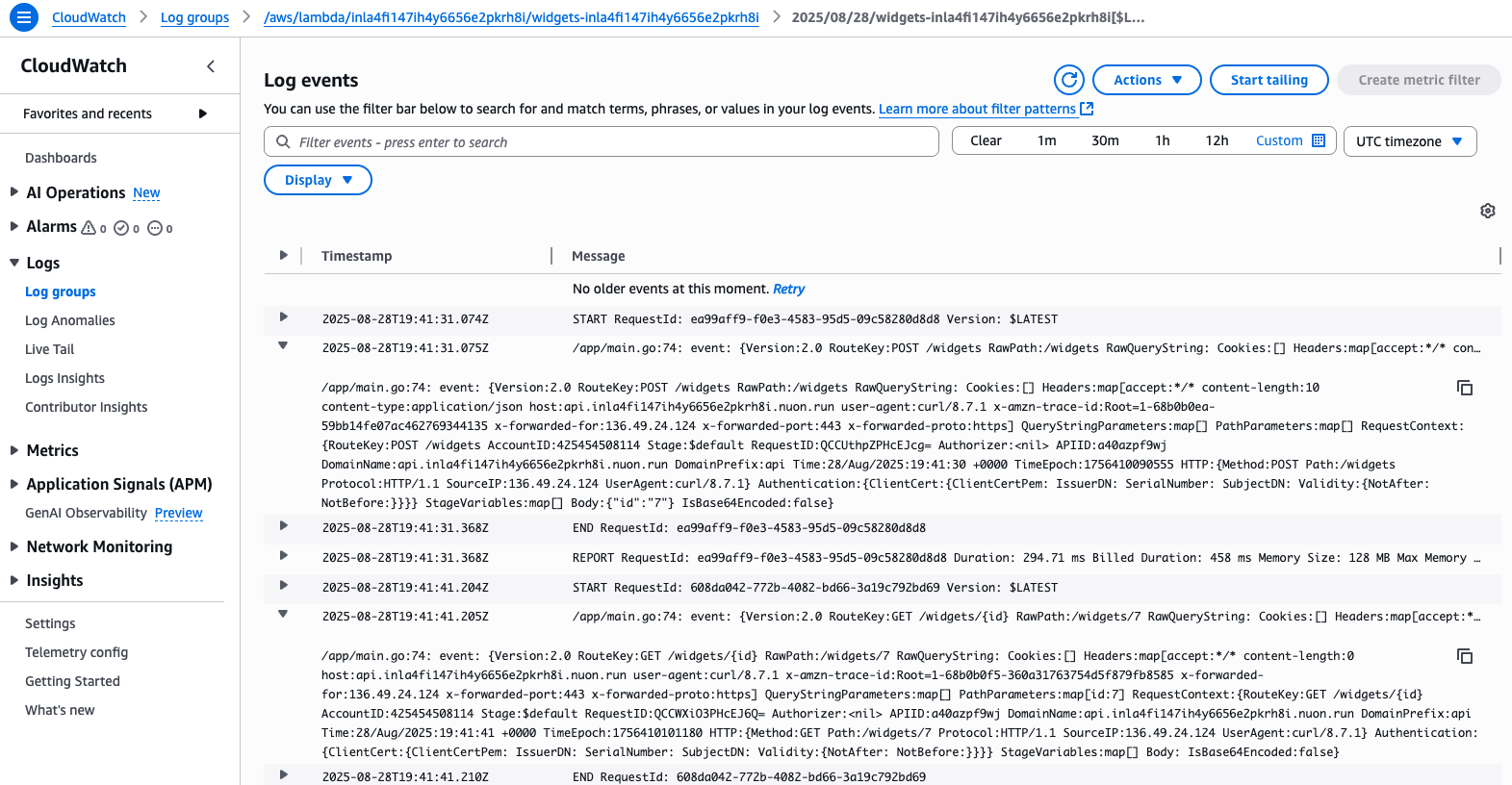
You can also verfify the POST and GET requests in the CloudWatch logs for the
Lambda function in the AWS console.
#### Create a Widget record in DynamoDB via a Lambda function
```sh theme={null}
curl -X POST https://.nuon.run/widgets \
-H Content-Type:"application/json" \
-d '{"id":"7"}'
```
The Go app called by the Lambda function will not return anything when it
successfully POSTs the value of 7 to the DynamoDB table called widgets.
#### Retrieve a Widget record from DynamoDB via a Lambda function
Verify the widget record was created with the GET request:
```bash theme={null}
curl https://.nuon.run/widgets/7
```
You should see the following response:
```json theme={null}
{ "id": "7" }
```
You can also verfify the POST and GET requests in the CloudWatch logs for the
Lambda function in the AWS console.
 ## Deprovision the Install
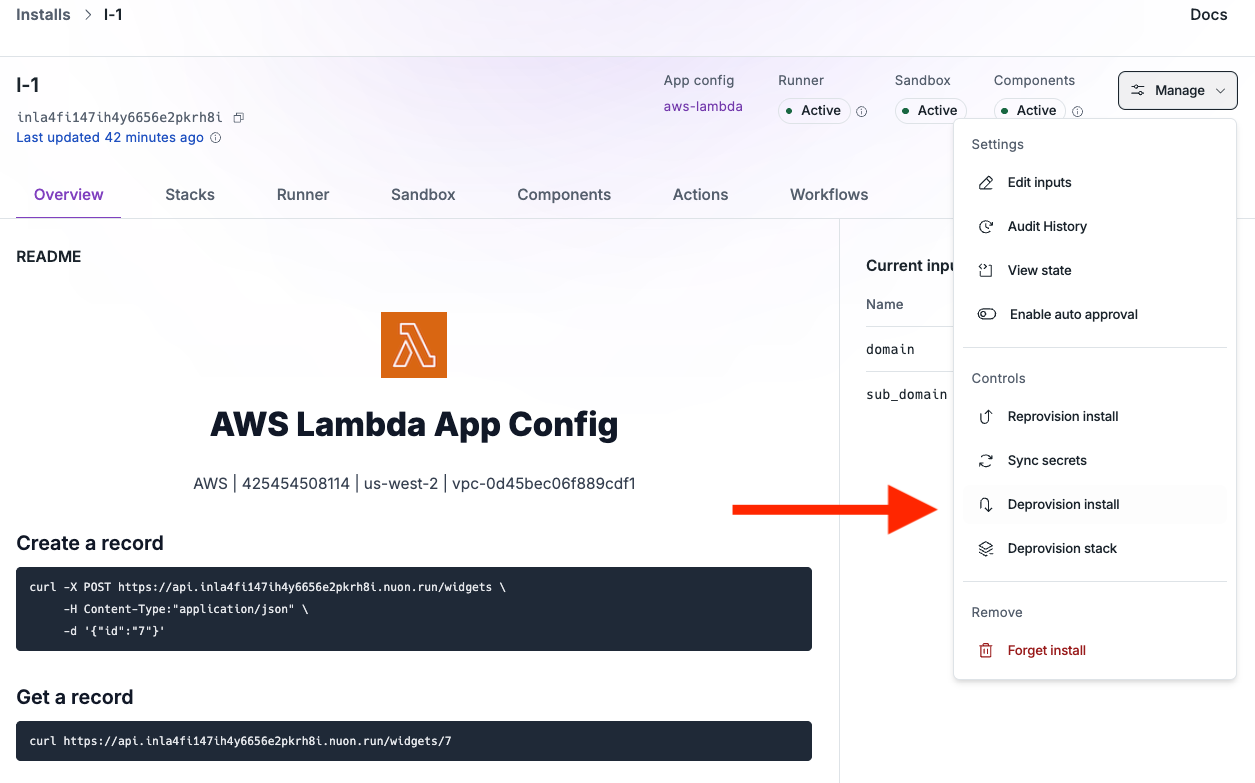
Nuon is mindful of your public cloud spend, so provide the following
deprovisioning steps. Deprovisioning the install is a two-step process. First,
you need to deprovision the install in the Nuon dashboard, which will
deprovision the resources to install your app. Once that is completed
successfully, tear down the install stack — delete the CloudFormation stack in
the AWS console, or run `terraform destroy` against the install module — to
remove the runner by destroying the EC2 VM, ASG, and VPC.
## Deprovision the Install
Nuon is mindful of your public cloud spend, so provide the following
deprovisioning steps. Deprovisioning the install is a two-step process. First,
you need to deprovision the install in the Nuon dashboard, which will
deprovision the resources to install your app. Once that is completed
successfully, tear down the install stack — delete the CloudFormation stack in
the AWS console, or run `terraform destroy` against the install module — to
remove the runner by destroying the EC2 VM, ASG, and VPC.
 Be sure to back up any data you want to keep before deprovisioning the
install, as this will delete all resources created by the install.
## Manually Deprovision the Install
If deprovisioning the install in the dashboard fails, tearing down the install
stack — deleting the CloudFormation stack in AWS, or running `terraform destroy`
against the install module — will delete all of the component resources and the
VPC.
## Wrapping Up and Next Steps
Congratulations, you just deployed an app to AWS!
A few suggestions for where to go next:
* Review other example apps in the
[example-app-configs repository](https://github.com/nuonco/example-app-configs)
to see how to deploy a more complex app.
* Dig into our [app](/concepts/apps) guide to learn how to configure more
complex apps.
Be sure to back up any data you want to keep before deprovisioning the
install, as this will delete all resources created by the install.
## Manually Deprovision the Install
If deprovisioning the install in the dashboard fails, tearing down the install
stack — deleting the CloudFormation stack in AWS, or running `terraform destroy`
against the install module — will delete all of the component resources and the
VPC.
## Wrapping Up and Next Steps
Congratulations, you just deployed an app to AWS!
A few suggestions for where to go next:
* Review other example apps in the
[example-app-configs repository](https://github.com/nuonco/example-app-configs)
to see how to deploy a more complex app.
* Dig into our [app](/concepts/apps) guide to learn how to configure more
complex apps.