> ## Documentation Index
> Fetch the complete documentation index at: https://docs.nuon.co/llms.txt
> Use this file to discover all available pages before exploring further.
# Manage Install Telemetry
> Enable or disable install telemetry and choose your organization default.
Choose which customer installs send application logs, metrics, and traces to your observability backend.
Before enabling collection for the first time, complete the [BYOC telemetry setup](/guides/byoc/telemetry).
Telemetry is disabled by default at the org level. You can change that default and override it for individual
installs. Existing and new installs without an override follow the current org default.
## Set the org default
As an **org admin**, open the profile menu in your Nuon BYOC dashboard. Under **Org settings**, select
**Manage telemetry**, change **Enable telemetry by default**, and select **Save settings**.
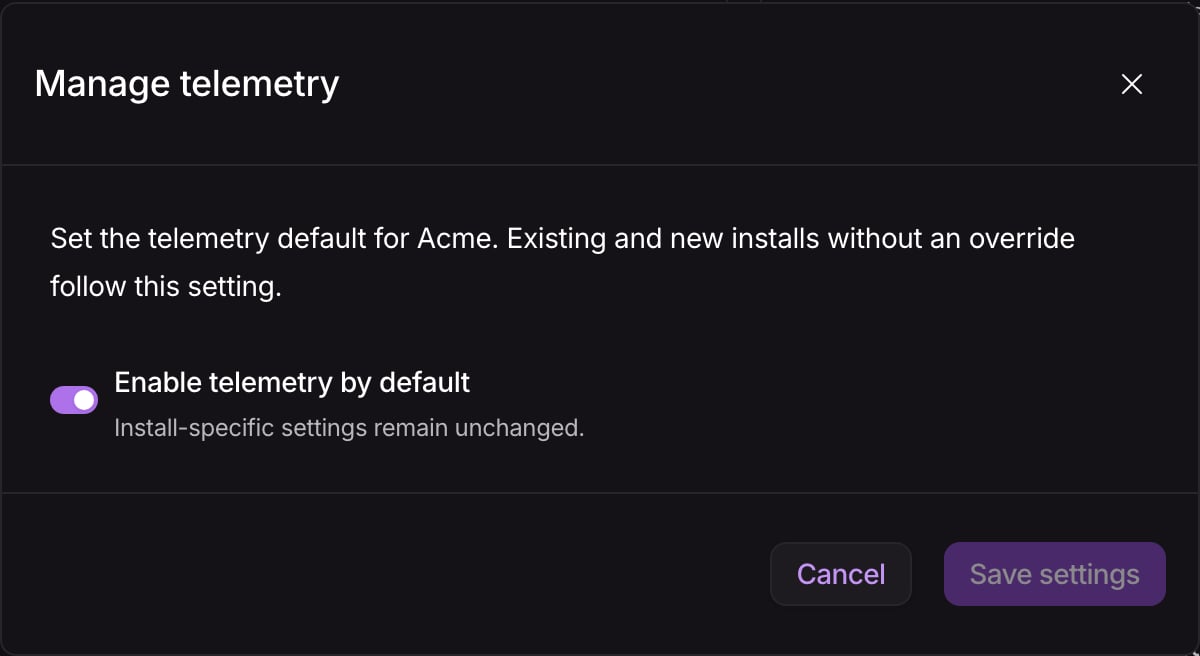 Install-specific overrides stay unchanged, so turning off the org default does not disable installs explicitly
set to enabled.
## Enable or disable an install
1. Open the install and select **Settings**.
2. Under **Configuration**, find **Telemetry**.
3. Turn **Enable telemetry** on or off and wait for the save to complete.
Install-specific overrides stay unchanged, so turning off the org default does not disable installs explicitly
set to enabled.
## Enable or disable an install
1. Open the install and select **Settings**.
2. Under **Configuration**, find **Telemetry**.
3. Turn **Enable telemetry** on or off and wait for the save to complete.
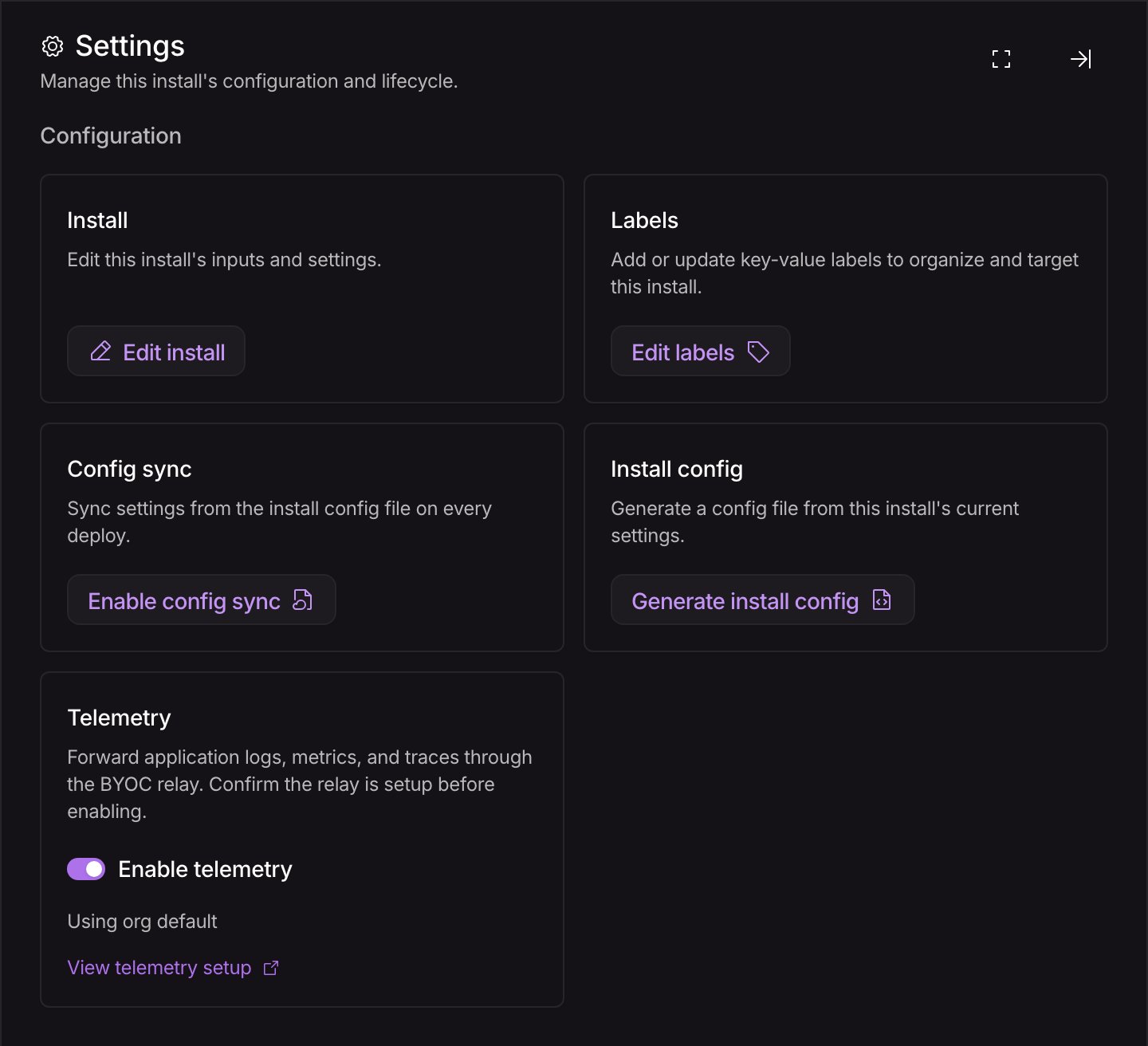 To remove an install-specific override, select **Use org default**. The card shows **Using org default** when the
install follows the org setting.
If the install is managed by a config file, these controls are read-only. Change its install config instead.
Add this section to the [install config](/guides/install-configs) and sync your changes:
```toml install.toml theme={null}
[telemetry]
enabled = true
```
Set `enabled = false` to disable telemetry for that install, even when the org default is enabled.
For a new install that should follow the org default, leave out the telemetry section.
Removing `[telemetry]` or `enabled` from an existing install config preserves its current setting; it does not
restore the org default.
The runner checks settings every 15 seconds and applies changes without a runner restart. If the runner is down,
you can still save the setting, but it cannot apply the change or forward data until it is running again.
If your app uses a [toggleable component](/guides/toggleable-components) to collect telemetry, that component must
also be enabled. The install telemetry setting controls forwarding, not component deployment.
## Check collection
Generate some application activity and look for recent data in your backend, filtered by the install's
`nuon.install.id` resource attribute. The dashboard toggle shows the configured setting, not delivery health.
For the complete set of identity attributes and delivery behavior, see
[Install Telemetry](/concepts/install-telemetry).
## Stop collection
Disable the install using either method above. Stop or reconfigure its application exporters too, so they do not
keep sending to an unavailable Collector. Disabling telemetry does not remove private ingress infrastructure or
delete data already stored in your backend.
Before shutting down the central relay, disable telemetry on the installs using it, including any explicit
overrides. Then coordinate with Nuon to disable the relay. For credential rotation, see
[the setup guide](/guides/byoc/telemetry#change-your-backend-or-rotate-credentials).
## Troubleshooting
### I cannot change the install setting
If the card says **Managed by config**, edit the install config. Otherwise, check for a missing private telemetry
endpoint: the dashboard requires a nonempty `telemetry_endpoint` stack output to enable forwarding. Update the
stack or re-enable its ingress using the [setup guide](/guides/byoc/telemetry#3-check-the-install-endpoint).
An already-enabled install can still be disabled when its endpoint is missing.
### Telemetry is enabled, but no data appears
Check that the runner is active, your application is emitting data, and its exporter uses the install's private
endpoint. Allow time for settings refresh and Collector startup. Confirm that Nuon has enabled the relay and that
your backend accepts the signals you are sending.
For connection timeouts, check network access to the private endpoint. For backend authentication failures, check
the BYOC backend secrets with Nuon; do not add backend credentials to workloads.
### I cannot find the telemetry controls
Use an up-to-date Nuon BYOC dashboard. Org-level **Manage telemetry** is visible only to org admins. Install
telemetry controls are not shown in Nuon Cloud.
If you need help, send Nuon the install ID, signal type, sample timestamp, and sanitized error details. Do not send
credentials or sensitive telemetry payloads.
To remove an install-specific override, select **Use org default**. The card shows **Using org default** when the
install follows the org setting.
If the install is managed by a config file, these controls are read-only. Change its install config instead.
Add this section to the [install config](/guides/install-configs) and sync your changes:
```toml install.toml theme={null}
[telemetry]
enabled = true
```
Set `enabled = false` to disable telemetry for that install, even when the org default is enabled.
For a new install that should follow the org default, leave out the telemetry section.
Removing `[telemetry]` or `enabled` from an existing install config preserves its current setting; it does not
restore the org default.
The runner checks settings every 15 seconds and applies changes without a runner restart. If the runner is down,
you can still save the setting, but it cannot apply the change or forward data until it is running again.
If your app uses a [toggleable component](/guides/toggleable-components) to collect telemetry, that component must
also be enabled. The install telemetry setting controls forwarding, not component deployment.
## Check collection
Generate some application activity and look for recent data in your backend, filtered by the install's
`nuon.install.id` resource attribute. The dashboard toggle shows the configured setting, not delivery health.
For the complete set of identity attributes and delivery behavior, see
[Install Telemetry](/concepts/install-telemetry).
## Stop collection
Disable the install using either method above. Stop or reconfigure its application exporters too, so they do not
keep sending to an unavailable Collector. Disabling telemetry does not remove private ingress infrastructure or
delete data already stored in your backend.
Before shutting down the central relay, disable telemetry on the installs using it, including any explicit
overrides. Then coordinate with Nuon to disable the relay. For credential rotation, see
[the setup guide](/guides/byoc/telemetry#change-your-backend-or-rotate-credentials).
## Troubleshooting
### I cannot change the install setting
If the card says **Managed by config**, edit the install config. Otherwise, check for a missing private telemetry
endpoint: the dashboard requires a nonempty `telemetry_endpoint` stack output to enable forwarding. Update the
stack or re-enable its ingress using the [setup guide](/guides/byoc/telemetry#3-check-the-install-endpoint).
An already-enabled install can still be disabled when its endpoint is missing.
### Telemetry is enabled, but no data appears
Check that the runner is active, your application is emitting data, and its exporter uses the install's private
endpoint. Allow time for settings refresh and Collector startup. Confirm that Nuon has enabled the relay and that
your backend accepts the signals you are sending.
For connection timeouts, check network access to the private endpoint. For backend authentication failures, check
the BYOC backend secrets with Nuon; do not add backend credentials to workloads.
### I cannot find the telemetry controls
Use an up-to-date Nuon BYOC dashboard. Org-level **Manage telemetry** is visible only to org admins. Install
telemetry controls are not shown in Nuon Cloud.
If you need help, send Nuon the install ID, signal type, sample timestamp, and sanitized error details. Do not send
credentials or sensitive telemetry payloads.