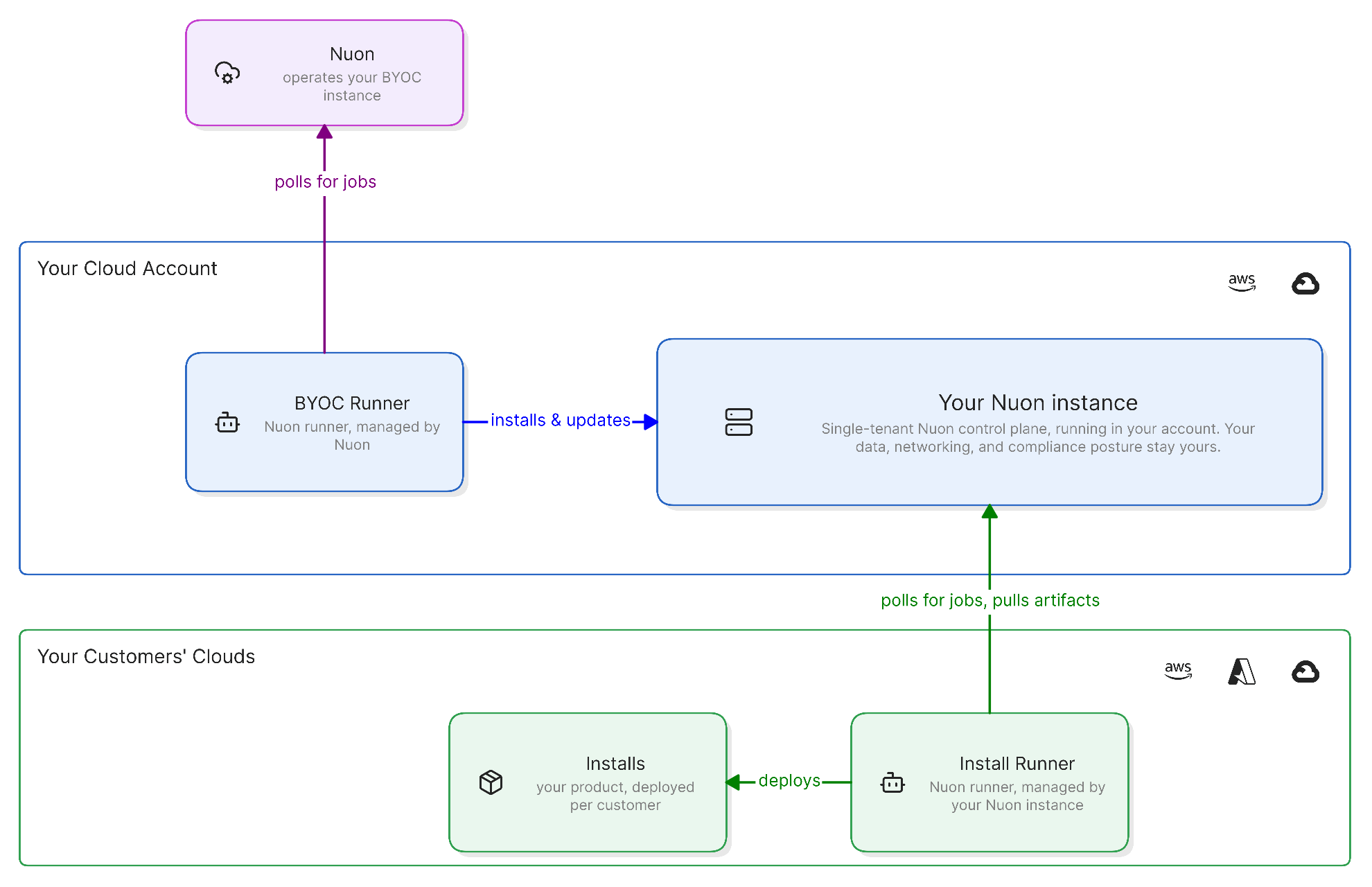
Nuon BYOC allows you to run a stand-alone, single-tenant instance of Nuon in your own AWS account. This gives you full control over your data, networking, and compliance requirements.
Prerequisites
Install ID
Before starting the BYOC installation, ask your Nuon engineer for your install ID. You will need this for various config values.
Set up an AWS Account
If you do not have an account set up already, you will need an AWS account. Nuon will require a VPC, so ensure the account has not reached it’s quota limits for VPS, EIPs, and Internet Gateways.
Nuon’s resource requirements are not compatible with AWS Free Tier. You will need a paid account.
You will need a user with admin permissions to provision the install stack during the installation.
Create a GitHub App so Nuon can clone code for components from private repos.
Go to GitHub App Settings and click New GitHub App
Configure the app with these settings:
Setting Value GitHub App name Choose any name (e.g., “Nuon BYOC”) Homepage URL https://app.<your-root-domain>Setup URL https://app.<your-root-domain>/connectRedirect on Update Checked Webhook Unchecked
Set permissions:
Permission Access Contents Read-only
Under “Where can this GitHub App be installed?”, select Only on this account (unless you need to access repos in other GitHub organizations)
Click Create GitHub App
After creation, scroll to the bottom and click Generate a private key . Save this PEM file - you’ll need it later.
Note your App ID and Client ID from the app settings page.
We have plans to remove this dependency in the future, and make it easier to configure your own IdP directly.
Nuon uses Auth0 for authentication. You’ll need to configure an API, applications, and a custom action in your Auth0 tenant.
Nuon provides a Terraform module to automate Auth0 configuration:
module "byoc_auth0" {
source = "github.com/nuonco/byoc-auth0"
# Your Auth0 tenant domain
auth0_domain = "your-tenant.auth0.com"
# The root domain for your BYOC install
public_domain = "<your-root-domain>"
# Your Nuon install ID
install_id = "<your-install-id>"
install_name = "<your-install-name>"
}
After applying, the module outputs the values you’ll need for the install inputs.
Manual Configuration
If you prefer to configure Auth0 manually, follow these steps:
1. Create a Custom Action Add an action to enrich the access token with the user’s email:
Go to Actions > Library in your Auth0 dashboard
Click Create Action > Build from scratch
Name it AddScope and select the latest runtime
Replace the code with:
exports . onExecutePostLogin = async ( event , api ) => {
const email = event . user . email ;
api . accessToken . setCustomClaim ( `email` , email );
};
Deploy the action
Go to Actions > Triggers > Post Login
Drag the AddScope action into the flow and save
2. Create an API Create an API with these settings: Setting Value Name API Gateway <your-install-id>Identifier api.<your-root-domain>Maximum Access Token Lifetime 2592000Implicit/Hybrid Flow Access Token Lifetime 86400Allow Skipping User Consent true
The Identifier must match your API URL exactly. It cannot be changed after creation.
3. Create a Single Page Application Create an SPA for the dashboard UI: Setting Value Name Nuon App - <your-install-name>Allowed Callback URLs https://app.<your-root-domain>/api/auth/callbackAllowed Logout URLs https://app.<your-root-domain>Allowed Web Origins https://app.<your-root-domain>Allow Cross-Origin Authentication trueMaximum Refresh Token Lifetime 31557600Allow Refresh Token Rotation trueRotation Overlap Period 0
4. Create a Native Application Create a native app for CLI authentication: Setting Value Name Nuon CTL API - <your-install-name>Description For BYOC Nuon Install <your-install-id>Allow Cross-Origin Authentication trueDevice Code (Advanced > Grant Types) Checked
Optional: Additional Identity Providers
Auth0 supports multiple identity providers. The default configuration enables Google authentication.
Step 1: Create an OIDC Application in Okta
In Okta, create a new OIDC application
Set the Sign In Redirect to <your-auth0-tenant>/login/callback
Set Trusted Origins to <your-root-domain>
Note the Client ID and Client Secret
Step 2: Create an Enterprise Connection in Auth0
Go to Authentication > Enterprise > Okta Workforce > Create
Configure:
Connection name: Choose a unique name
Okta domain: Your Okta tenant domain
Client ID/Secret: From Step 1
Enable Sync user profiles at each login
Set User Mapping:
{
"attributes" : {
"email" : "${context.tokenset.email}"
},
"mapping_mode" : "use_map"
}
After configuring all dependencies, update your install inputs in the Nuon dashboard.
Authentication Configuration
Input Value Auth0 Issuer URL Your Auth0 tenant URL Auth0 Audience Your Auth0 API identifier Auth0 Client ID - CTL API Your Auth0 native app client ID Auth0 Client ID - Dashboard UI Your Auth0 SPA client ID
GitHub Configuration
Input Value Github App Name Name of your GitHub app Github App ID ID of your GitHub app Github App Client ID Client ID from your GitHub app
DNS Configuration
Input Value Root Domain Your custom domain, or <your-install-id>.nuon.run for Nuon-provided domain
Database Configuration (Optional)
Adjust instance sizes for RDS, Temporal, and ClickHouse clusters if needed.
Update Secrets
When provisioning the CloudFormation stack, provide these secrets:
Secret Value github_app_keyYour base64-encoded GitHub App PEM key auth_client_secretThe client secret from your Auth0 SPA
The GitHub App PEM key must be base64 encoded because AWS CloudFormation doesn’t preserve newlines in text fields. To encode your PEM key: base64 -i your-github-app-key.pem
Provision the Install
Once all inputs and secrets are configured:
Return to your install in the Nuon dashboard
Click Reprovision Install from the Manage menu
Wait for the provision workflow to complete
To host your BYOC Nuon instance under a custom domain, configure DNS for your root domain to point to the Route53 Zone created in the sandbox.
After the sandbox provisions, you’ll receive:
A Zone ID for your public domain
Nameserver records to add to your domain’s DNS
Create NS records in your domain’s DNS pointing to the Route53 nameservers provided.
Verify Installation
After successful provisioning, verify your installation is working:
Service URL Dashboard https://app.<your-root-domain>CTL API https://api.<your-root-domain>Runner API https://runner.<your-root-domain>
You can also verify the API is responding:
curl https://api. < your-root-domai n > /health