

For background on policy concepts, types, and engines, see the Policies concept page.
Prerequisites
Before starting, ensure you have:- An existing Nuon app with at least one component (terraform, helm, or container_image)
- The Nuon CLI installed and authenticated
- Basic familiarity with OPA Rego syntax
Create the Policy Directory Structure
Create apolicies/ directory in your app root to store policy files:
Add a Container Image Policy (Build-time)
Container image policies validate external images during the build phase. This example requires all images to be cryptographically signed. Createpolicies/require-signed-images.rego:
policies/require-signed-images.rego
For detailed container image policy patterns including SBOM validation and attestation checks, see the External Image Policies guide.
Add a Terraform Policy (Deploy-time)
Terraform policies validate the Terraform plan before applying changes. This example requires S3 bucket encryption and warns about missing tags. Createpolicies/require-encryption.rego:
policies/require-encryption.rego
Add a Helm Chart Policy (Build-time and Deploy-time)
Helm chart policies validate rendered Kubernetes manifests. They run when the component is built and again when it is deployed to an install. This example requires CPU and memory limits on all containers. Createpolicies/require-resource-limits.rego:
policies/require-resource-limits.rego
Configure policies.toml
Createpolicies.toml at your app root to register each policy:
policies.toml
Policy configuration fields
The
contents field supports multiple source types. Relative paths are resolved from the policies/ directory:
Sync Your App
Upload your policies by syncing your app:Observe Build-Time Evaluation
Container image and Helm chart policies are evaluated when you create a build. Trigger a build for your image component:policy_failed status:
Observe Deploy-Time Evaluation
Terraform and Helm policies are evaluated during deployment. Deploy your components to an install:✗indicates deny violations that blocked the step⚠indicates warnings that were logged but allowed the step to continue✓indicates all policies passed
View Results in Dashboard
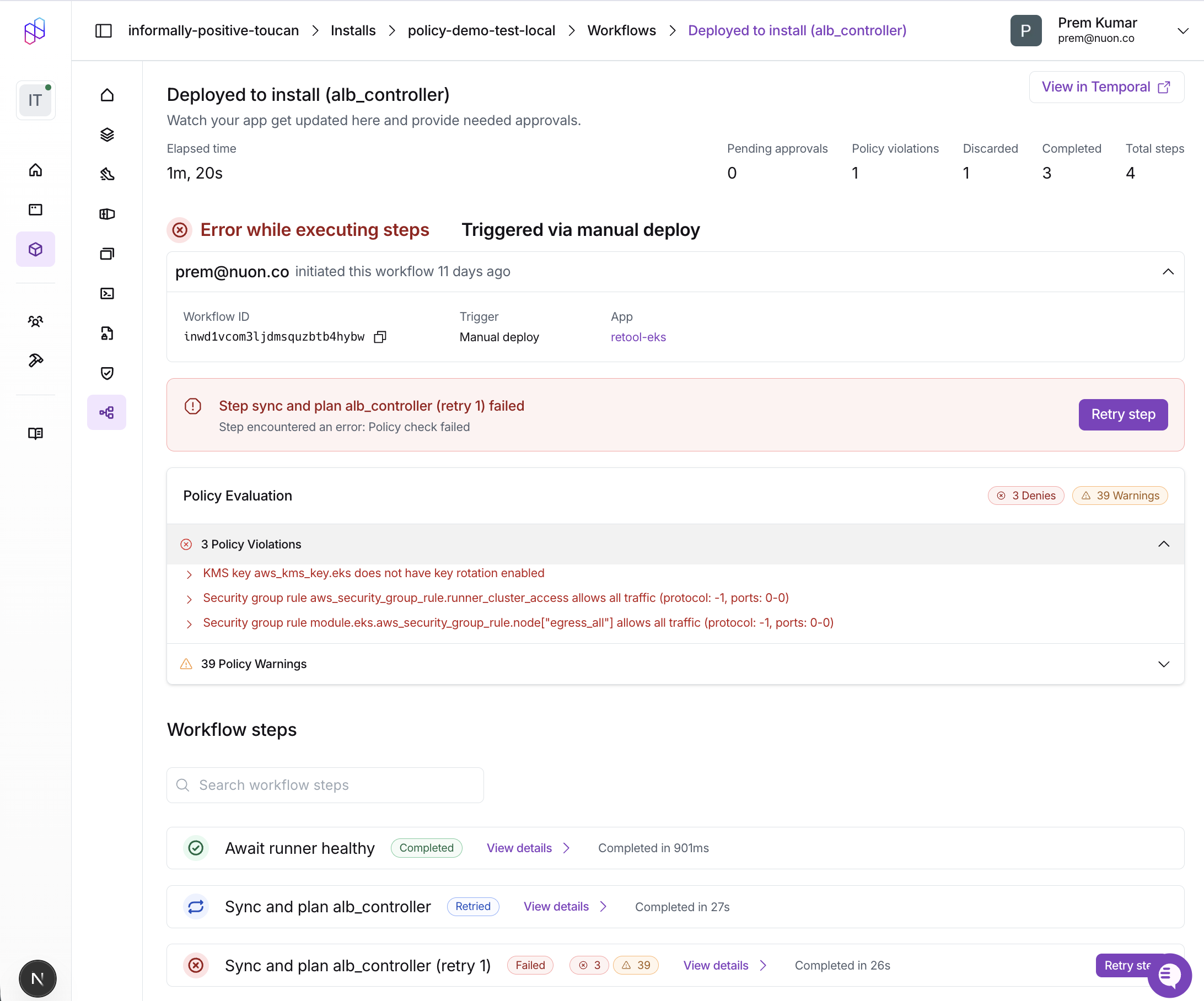
Policy results are also visible in the Nuon Dashboard:- Navigate to your install’s Workflows tab
- Select the workflow run
- Click on a workflow step to view details
- The Policy Report card shows:
- Passed: Green checkmark if all policies passed
- Denies: Red indicators with violation messages
- Warnings: Orange indicators with warning messages
deny or warn rule.
Fix Policy Violations
To resolve policy violations, update your components to comply with the policies: For container images: Sign your images using cosign or another signing tool before pushing to your registry. For Terraform: Add the required configuration to your module:Next Steps
- External Image Policies - Advanced patterns for container image validation including SBOM, attestations, and signature verification
- Example Policies Repository - Ready-to-use policy examples for Terraform and Kubernetes
- Policies Configuration Reference - Complete schema reference for policy configuration