

Set the org default
As an org admin, open the profile menu in your Nuon BYOC dashboard. Under Org settings, select Manage telemetry, change Enable telemetry by default, and select Save settings.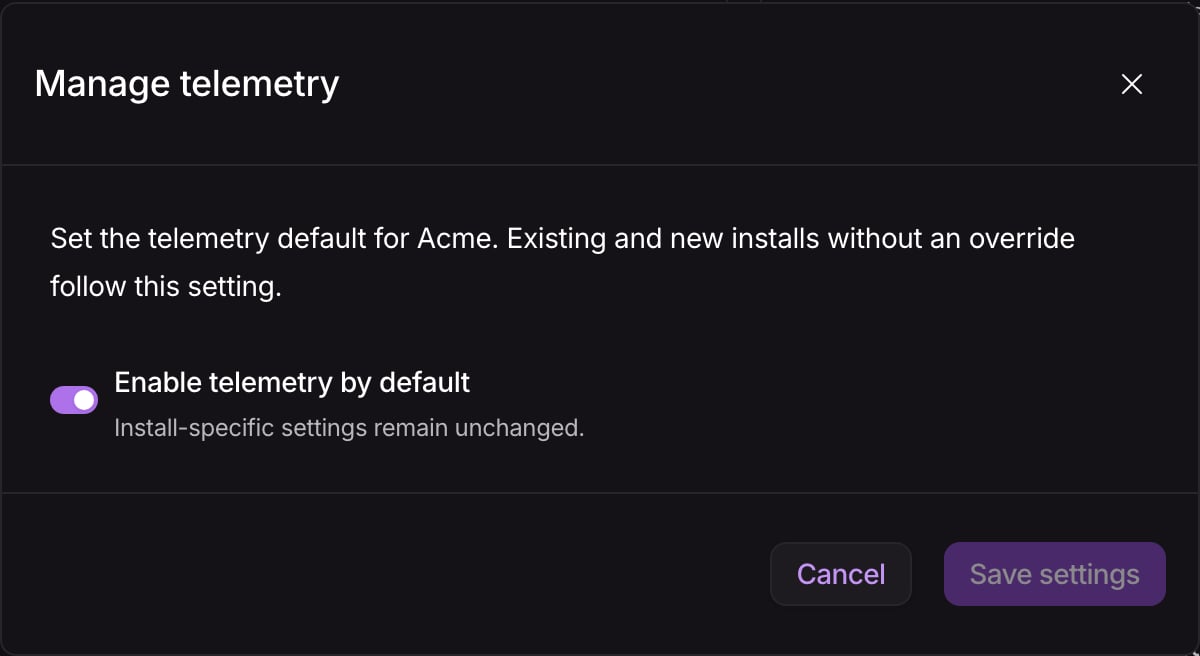
Manage the telemetry default for installs without an override.
Enable or disable an install
- Using Nuon Dashboard
- Using Install Config Files
- Open the install and select Settings.
- Under Configuration, find Telemetry and select Manage telemetry.
- Set Telemetry forwarding to On, Off, or Use org default (On/Off), then select Save settings.
Set up an optional in-cluster collector
Use an in-cluster collector to keep collecting application telemetry while the install runner is stopped.Configure the app
-
Add Nuon’s
telemetry-agent Helm chart as an optional
app component. Set
apiURLto{{ .nuon.runner.api_url }}andinstallIDto{{ .nuon.install.id }}. -
Define an optional string install input with
sensitive = trueand pass its value to the chart’sbootstrapTokenvalue. -
Add this label to exactly one collector component so the dashboard can find it:
- Commit and push to the git branch your app branch tracks to publish the app config.
Enable an install
- As an org admin, open Manage telemetry → In-cluster collector (optional) and select Create bootstrap credential. The default expiry is one year.
- Save the one-time token in the collector’s sensitive install input. For config-managed installs, update the input in the install config and sync it. Do not commit the token.
- With the runner online, enable the collector component and roll out the updated install configuration.
- Route application OTLP exporters to the collector’s cluster-local endpoint using your app config.
- Set Telemetry forwarding to On (or inherit an enabled org default) and verify fresh data in your backend before stopping the runner.
Rotate or remove collector access
- Before expiry, select Create bootstrap credential to issue a replacement.
- Update the same sensitive install input, sync if config-managed, and roll out the collector with the runner online.
- Verify collection, then select Revoke credential for the old token.
Check collection
Generate some application activity and look for recent data in your backend, filtered by the install’snuon.install.id resource attribute. The dashboard shows configured forwarding and setup metadata, not delivery health.
For the complete set of identity attributes and delivery behavior, see
Install Telemetry.